Confidential, Draft or Approved: How to Stamp Business Documents the Right Way
Every office has a story about the wrong version of a document being signed, sent to a client or printed for a meeting. A clear watermark is one of the simplest ways to prevent that. Here's a practical guide to the common document stamps, when to use each one, and how to add them to a PDF without special software.
The four stamps most businesses need
1. DRAFT
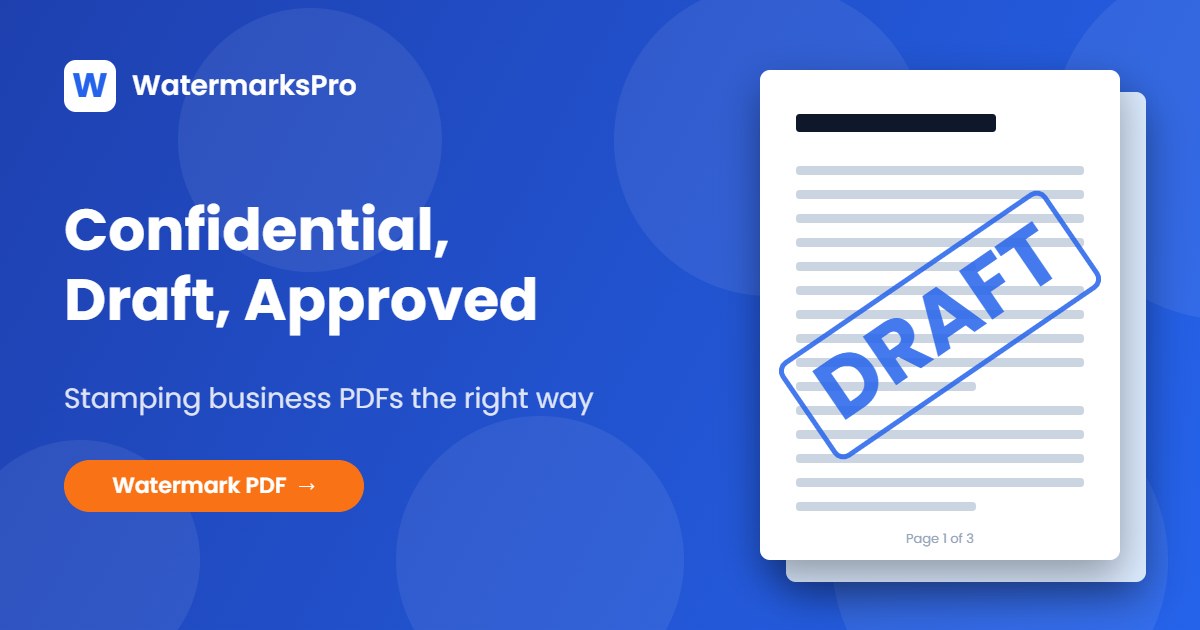
Use it on anything that is still changing: proposals, contracts under negotiation, reports waiting for review, policy documents. A large diagonal "DRAFT" across the middle of each page makes it impossible to mistake the file for the final version, even when it's printed or forwarded.
Tip: keep the opacity around 20% so reviewers can still read and comment on the text.
2. CONFIDENTIAL (or INTERNAL ONLY)
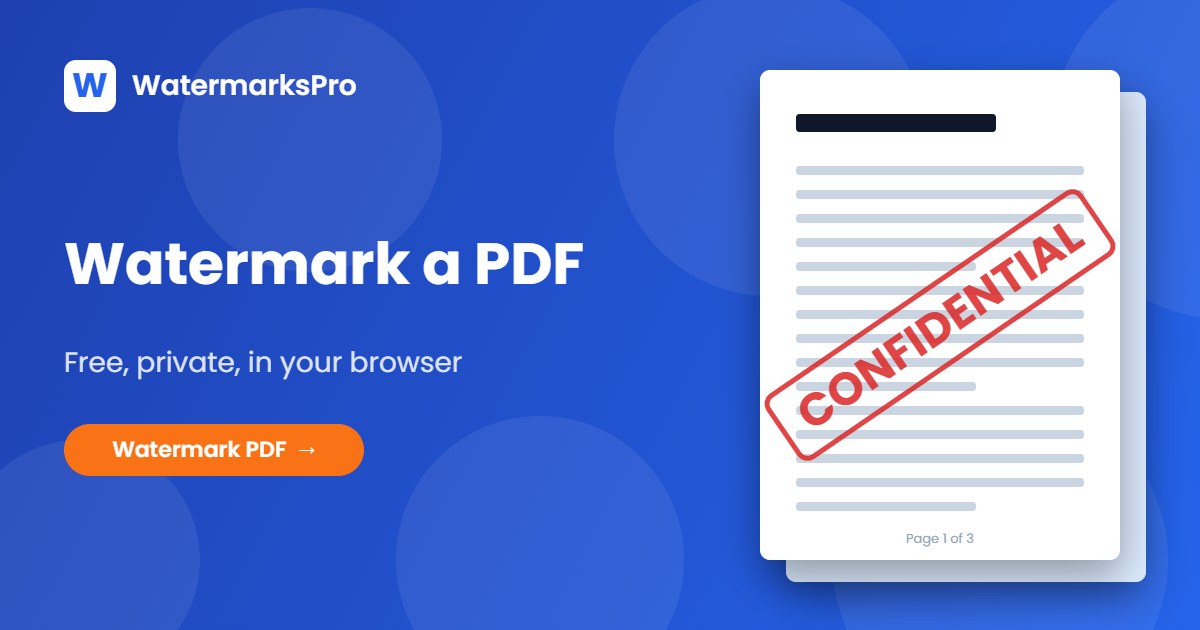
Use it on salary information, board papers, pricing sheets, HR documents and anything covered by an NDA. The watermark won't stop someone determined to share the file, but it removes any doubt that they knew it was private. That matters if there is a dispute later.
3. APPROVED (with a date)
Once a document is signed off, an "APPROVED" stamp with the date tells everyone this is the version to use. It's common for artwork proofs, purchase orders, timesheets and quality documents.
4. The recipient's name
For sensitive documents sent to several people (investors, bidders, candidates), put each person's name on their own copy: "Prepared for Acme Ltd". If a copy leaks, you know where it came from. People are also far less likely to forward a document with their own name on every page.
Where should the watermark go?
- Diagonal across the middle for status stamps (Draft, Confidential). It's the most visible and the hardest to crop.
- A corner or the footer for branding and recipient names, where it doesn't get in the way of reading.
- A tiled pattern for highly sensitive files. Small repeated text across the page is very hard to remove from a screenshot.
- The emptiest part of the page when you don't want to cover any text. The Watermark PDF tool has an Auto position button that finds that spot on each page for you.
How to add these stamps to a PDF in about a minute
- Open the free Watermark PDF tool and choose your file. It is opened in your browser, not uploaded, which matters for confidential documents.
- Go to the Templates tab and click Confidential, Draft stamp or Approved. The Approved template fills in today's date for you.
- For a recipient name, use the Page footer or Logo corner template and replace the text with "Prepared for [name]".
- In the Pages tab, choose whether every page gets the stamp or, for example, all pages except the cover.
- Click Watermark PDF and download.
Making copies for several recipients? Change the name, export again, and repeat. Save your style as a template so every copy looks the same.
Make it look professional
- One stamp per page is enough. "DRAFT" plus "CONFIDENTIAL" plus a logo in three colours looks messy.
- Match your brand colours, or use a classic red for Confidential, blue for Draft and green for Approved.
- Use the Multiply blend mode so the stamp looks like ink on paper rather than a box pasted on top.
- Choose Print quality sharpness if the document will be printed.
What a watermark doesn't do
A watermark is a label, not a lock. It doesn't stop someone opening, printing or copying the document. For that, add a password or share the file through a system with access controls. Use both together: the password keeps the wrong people out, and the watermark reminds the right people how to treat the document.
The free plan handles PDFs up to 3 pages. For longer contracts and reports, Pro removes the limit. Stamp your first document now.