How to Watermark a PDF Online for Free (Without Uploading It)
Need to put "Confidential", "Draft" or your company name on a PDF before you send it? Most online tools ask you to upload the file to their server first. For a contract, an invoice or an unpublished report, that is not a great idea. This guide shows how to watermark a PDF for free in your browser, so the document never leaves your computer or phone.
Why watermark a PDF?
- To show its status. A big "DRAFT" across the page stops anyone treating an early version as final.
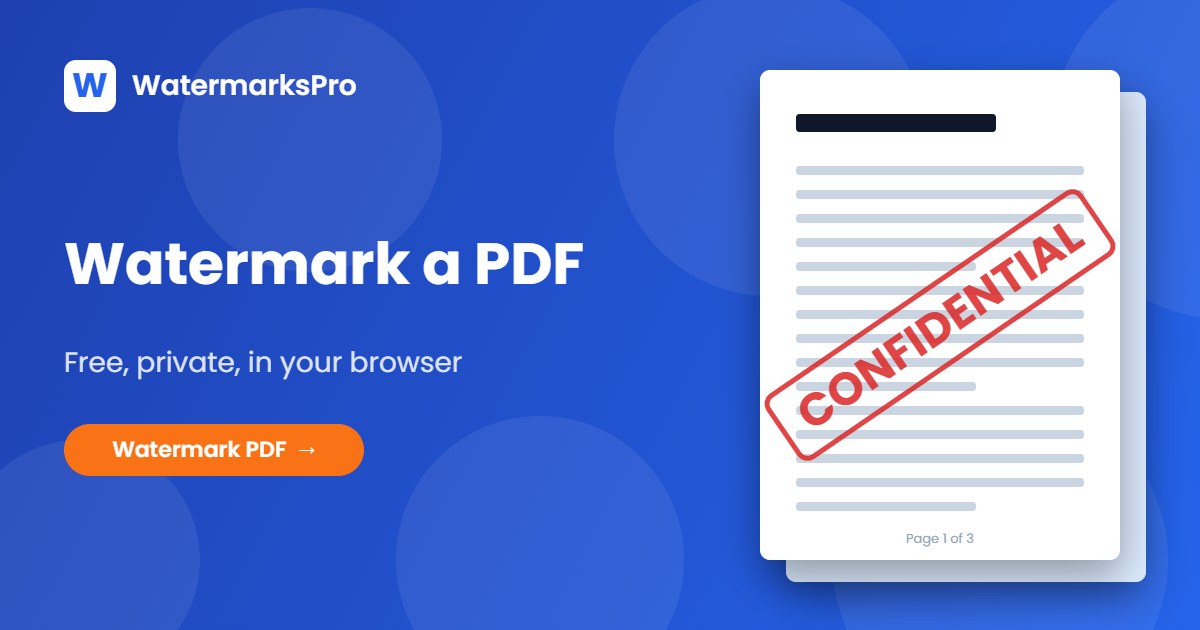
- To mark it as private. "Confidential" or "Internal only" reminds readers not to forward it.
- To show who made it. Your logo or company name on every page keeps your brand attached when the file is shared.
- To trace leaks. Putting the recipient's name on their copy ("Prepared for Jane Doe") makes people think twice before passing it on.
Step 1: Open your PDF
Go to the free Watermark PDF tool and click Choose PDF, or drag the file onto the page. The first page appears in a live preview. Nothing is uploaded: the PDF is read by your browser on your own device.
Step 2: Add your text or logo
In the Text tab, type your watermark. You can change the font, colour, size, opacity, outline and shadow. In the Logo tab you can add your logo as an image (a transparent PNG looks best), on its own or next to the text.
The text can include a few handy codes that change on every page:
{page}and{pages}for "Page 3 of 12"{filename}for the name of the file{date}and{year}for today's date or the year
For example, {filename} · Page {page} of {pages} gives you a simple footer on every page.
Step 3: Pick a position, or let the tool pick one
Open the Position tab. You can:
- Click one of the nine spots (top left, top centre, top right, middle, bottom right and so on).
- Click Auto position, which looks at each page and puts the watermark in the emptiest area, so it covers as little text as possible.
- Drag the watermark anywhere on the preview, and pull its corner handle to make it bigger or smaller.
- Rotate it (for example -45° for the classic diagonal stamp) or switch to Tiled pattern to repeat it across the whole page.
Step 4: Choose which pages get the watermark
In the Pages tab you can watermark all pages, only the first page, all pages except the first (useful when page 1 is a cover), odd or even pages, or your own selection. Custom ranges work like a print dialog: 1-3, 5, 8- means pages 1 to 3, page 5, and page 8 to the end.
You can also choose the watermark sharpness. Standard keeps the file small; Print quality is best if the document will be printed.
Step 5: Download
Click Watermark PDF, then Download PDF. Open the file to check it. Your original text, links and form fields are untouched; the watermark is added on top of each page.
Shortcut: use a template
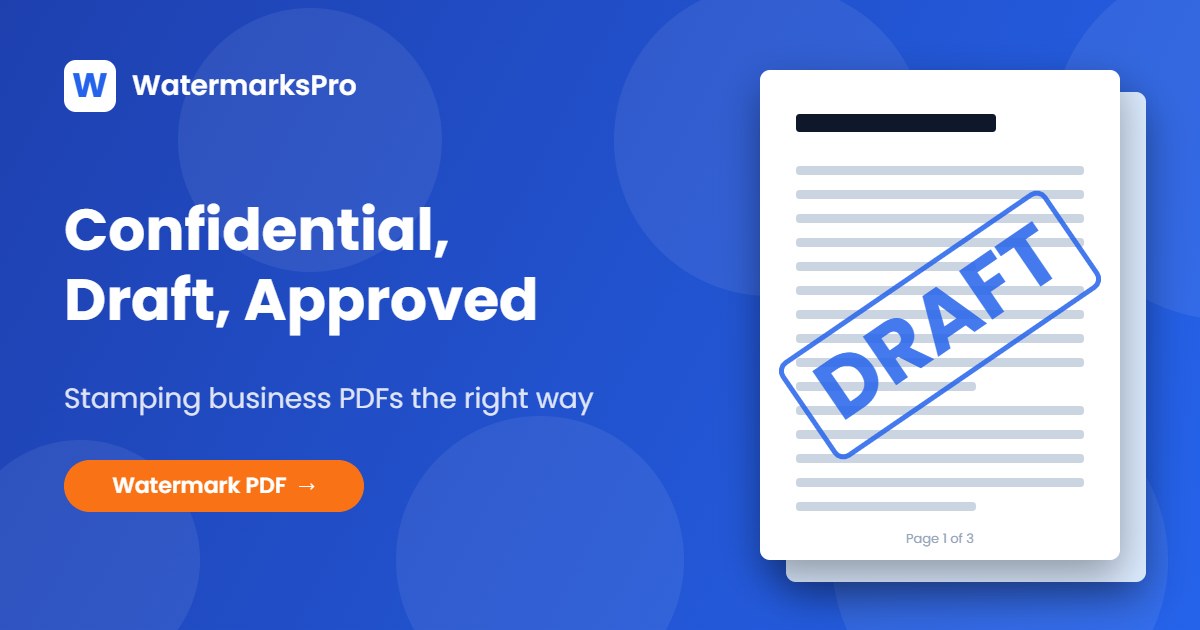
The Templates tab has ready-made styles you can apply in one click: Confidential, Draft stamp, Page footer, Tiled company, Logo corner and Approved (with today's date). Adjust one to your liking and click Save current to keep it for next time. Saved templates stay in your browser.
How many pages can I watermark for free?
The free plan watermarks PDFs of up to 3 pages, which covers most letters, quotes, invoices and one-page CVs. For longer documents, WatermarksPro Pro removes the page limit. It also gives you unlimited image watermarking and the video tool without size limits, with no ads.
Tips for a good PDF watermark
- Keep it light. 15–30% opacity is enough for a diagonal "DRAFT" and keeps the text readable.
- Use "Multiply" blend mode for coloured stamps on white pages. It looks like real ink instead of a sticker.
- Skip the cover page with "All except the first page" if your first page is a designed cover.
- Remove the password first. Password-protected PDFs can't be opened by the tool. Open the file, save or print it as a new PDF, then add the watermark.
Is a PDF watermark impossible to remove?
No watermark is impossible to remove. Someone with a PDF editor and enough time can delete almost anything. The watermark is added as an image layer on top of the page, so it can't be selected or copied as text, and it can't be removed with a simple copy and paste. For most uses (status labels, branding, and making clear who a copy belongs to), that is exactly what you need.
Ready to try it? Watermark your PDF now. It's free and your file stays on your device.