Selling PDFs? How to Watermark eBooks, Worksheets and Course Notes
Teachers, tutors, coaches, designers and authors sell a lot of PDFs: eBooks, printable planners, worksheets, recipe books, sewing patterns, study notes. The downside of a PDF is that it's easy to forward. You can't stop every copy, but a good watermark keeps your name on your work wherever it ends up, and it quietly discourages sharing. Here's how to do it without annoying your paying customers.
What to put in the watermark
Your brand and website
A small line such as "© {year} Your Brand · yourbrand.com" in the footer of every page is the minimum. If the file is shared, every new reader knows where it came from and where to buy it. Many sellers find this turns pirated copies into free advertising.
A licence line
"Licensed to one classroom. Please do not share." is polite, clear, and reminds buyers of the terms they agreed to. Teachers in particular tend to respect it.
The buyer's name (for high-value files)
For premium courses, reports or patterns, put the buyer's name or order number on their copy: "Licensed to Jane Doe · Order #1043". People rarely share a file with their own name on every page. If a copy turns up online, you know whose it was.
Where to place it so it doesn't spoil the product
- Footer or a bottom corner: the best place for brand and licence lines. It's visible but stays out of the content.
- Not on worksheet answer areas: use the Auto position button in the Watermark PDF tool to put the watermark in the emptiest part of each page.
- Skip the cover: choose "All except the first page" so your designed cover stays clean.
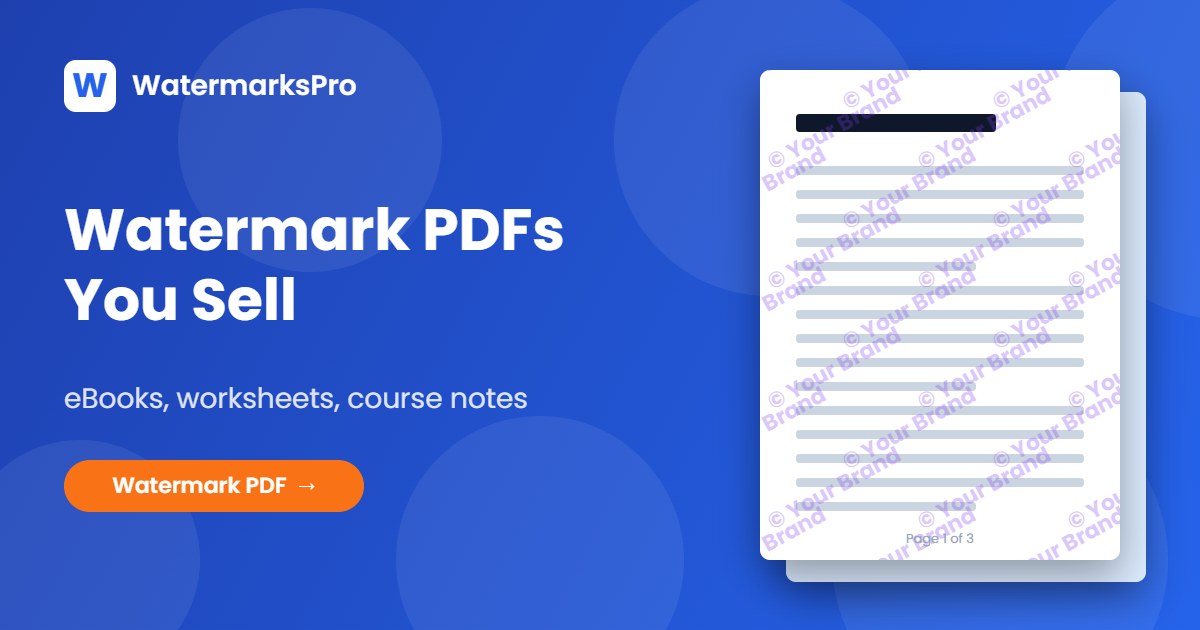
- Light tiled pattern for free samples: for preview pages you give away, a faint repeated "SAMPLE" or brand name across the page protects the content while still showing its quality.
How to watermark your PDF
- Open the Watermark PDF tool and choose your file. It opens in your browser and is never uploaded.
- Pick a template: Page footer for a brand line with page numbers, Logo corner for your logo and name, or Tiled company for a sample copy.
- Edit the text. You can use
{page},{pages},{year}and{filename}, which fill in automatically. - Add your logo in the Logo tab if you like.
- In Pages, choose which pages get it. For example,
2-means page 2 to the end. - Choose Print quality sharpness for printables, then click Watermark PDF and download.
- Click Save current in Templates so every product you release gets the same watermark.
Will it affect the file for my customers?
No. The original PDF content is not changed. Text stays selectable and searchable, links still work, and fillable form fields still work. The watermark is added as a transparent layer on top of each page. For printables, keep the opacity light (20–40%) and the size small, so it doesn't show up as a dark band when printed.
A note on free samples
Giving away a few sample pages is one of the best ways to sell a PDF. Make a separate sample file, add a clear tiled "SAMPLE" watermark, and add a footer line with your shop link. The free plan covers PDFs up to 3 pages, which is ideal for samples. For full eBooks and workbooks, Pro handles any page count.
Protect your next product in a minute: watermark your PDF now. Selling video lessons too? The video watermark tool works the same way.