How to Watermark Photos on iPhone and Android
Most photos today are taken, edited and posted from a phone. So it makes sense to watermark them on the phone too, instead of sending them to a computer first. The good news is you don't need to install an app. You can do it in your phone's browser in a minute or two.
Why use a browser instead of an app?
- Nothing to install. No storage used, no account needed for basic use.
- Fewer permissions. Many watermark apps ask for full access to your photo library. In the browser you pick only the photos you want.
- Privacy. Watermarks Pro processes images on your device, so your photos are not uploaded to our server.
- Same tool everywhere. Your templates work on your phone, tablet and computer.
How to watermark photos on iPhone
- Open Safari (or Chrome) and go to the watermark tool.
- Tap Add images and choose Photo Library. Select one or several photos.
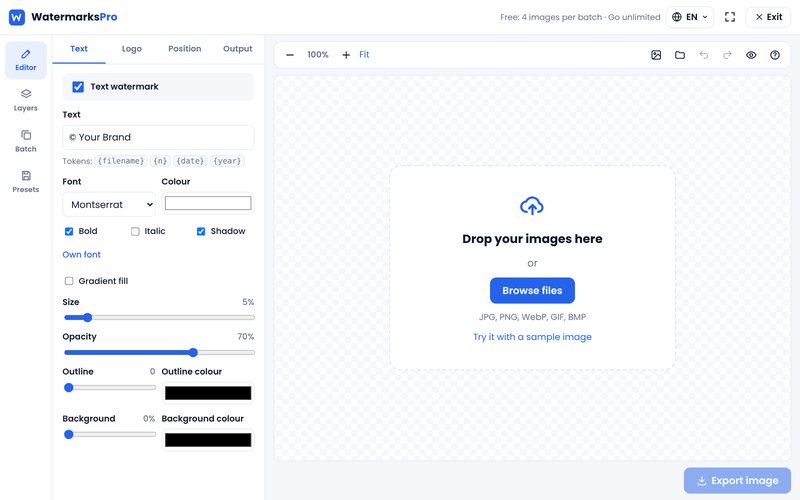
- Add a text layer with your name or website, or tap to add your logo. A PNG logo with a transparent background looks best.
- Drag the watermark into place with your finger, then adjust size and opacity with the sliders.
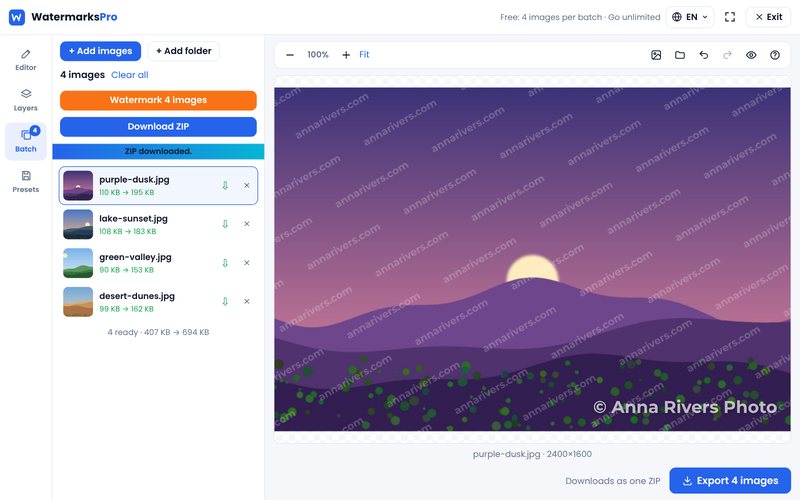
- Tap Watermark images. When it finishes, use Share to save the images to Photos or send them straight to an app, or download them.
Tip: Add the tool to your home screen (Share button, then "Add to Home Screen"). It opens full screen, just like an app.
How to watermark photos on Android
- Open Chrome and go to the watermark tool.
- Tap Add images. Choose from your gallery or files. You can select several photos at once.
- Add your text or logo, then position and resize it.
- Tap Watermark images to process the batch.
- Use Share to send the results to WhatsApp, Instagram or Google Photos, or download them to your phone.
Tip: In Chrome, open the menu and choose "Add to Home screen" (or "Install app") for one-tap access.
Tips for watermarking on a small screen
- Zoom in to check. A watermark that looks fine on a small preview can be blurry or too faint at full size. Use the zoom in the editor before you export.
- Save a template. Typing your name and setting sizes on a phone is fiddly. Do it once, save it as a template, and reuse it every time.
- Work in batches. Select all the photos from one shoot together instead of doing them one by one.
- Keep your logo file on the phone. Save a transparent PNG of your logo in your Files app or gallery so it is always ready.
- Mind the crop. Instagram, Facebook and WhatsApp may crop your image into a square or a different shape. Keep the watermark away from the very edges so it survives.
Large photos and battery
Modern phones handle photos from their own cameras easily. If you are working with very large files, such as 50-megapixel shots or RAW exports, process them in smaller batches of 10 to 20 so the browser has enough memory. For big jobs of hundreds of photos, a computer is still faster.
Summary
Watermarking on your phone takes three steps: add photos, add your text or logo, and share or download the results. No app, no upload, and your settings are ready for next time. Try it on your phone now.